Generating QR Codes from Spreadsheets
28 July 2026
If your QR Code data is already prepared in a spreadsheet, you don't have to type it again. Export the data as a CSV (or drop an Excel workbook as it stands) and you get back one QR code per row.
This guide goes through it in plain steps: what the spreadsheet needs to look like, how to get it out of each of those three apps as a CSV, and what to click here. It takes about five minutes, and up to 100 codes need no account at all.
What your spreadsheet needs to look like
Three columns, in this order. Only the first one is required.
| Column | What goes in it | Required? |
|---|---|---|
| A | The exact thing the code should hold: a full web address, a product code, any text | Yes |
| B | A filename for that code's image | No |
| C | A caption printed underneath the code | No |
There are four rules to follow:
- One row per code. Ten rows == ten codes.
- No merged cells, and no blank rows used as spacers.
- Include the whole web address, including the
https://at the front. BulkQR won't add it for you. - To specify a caption but no filename, leave column B empty rather than deleting it. Column B is always read as the filename.
You don't need to worry about stray spaces at the start or end of a cell, those are trimmed for you.
If you're making printable labels
The printable labels page reads the same file, but the columns after
the first mean something different there. Column A is still what the code
holds. Columns B, C, D and so on become text you can place anywhere on the
label, referred to in the label design as {2}, {3} and {4}, with {1}
standing for the code's own text. You can have up to twenty of them.
So the same file works on both pages. You just decide what the extra columns are for.
Start from our example file
Rather than build a sheet from scratch, take one of these, open it, and replace the rows with your own.
- Download the example spreadsheet (.xlsx): opens in Microsoft Excel, Apple Numbers and Google Sheets
- Download the example CSV (.csv): opens in those three too, and in almost anything else
Both files hold the same ten rows, with url, filename and caption as the
headings on row 1. Keep the columns in that order and you can't go far wrong.
Apple Numbers
Numbers won't save a .csv with the ordinary Save command. You export it
instead.
- Open your spreadsheet in Numbers.
- Choose File → Export To → CSV…
- Click the arrow beside Advanced Options to open them.
- Set Text Encoding to Unicode (UTF-8).
- Click Next…, choose a folder, and save.
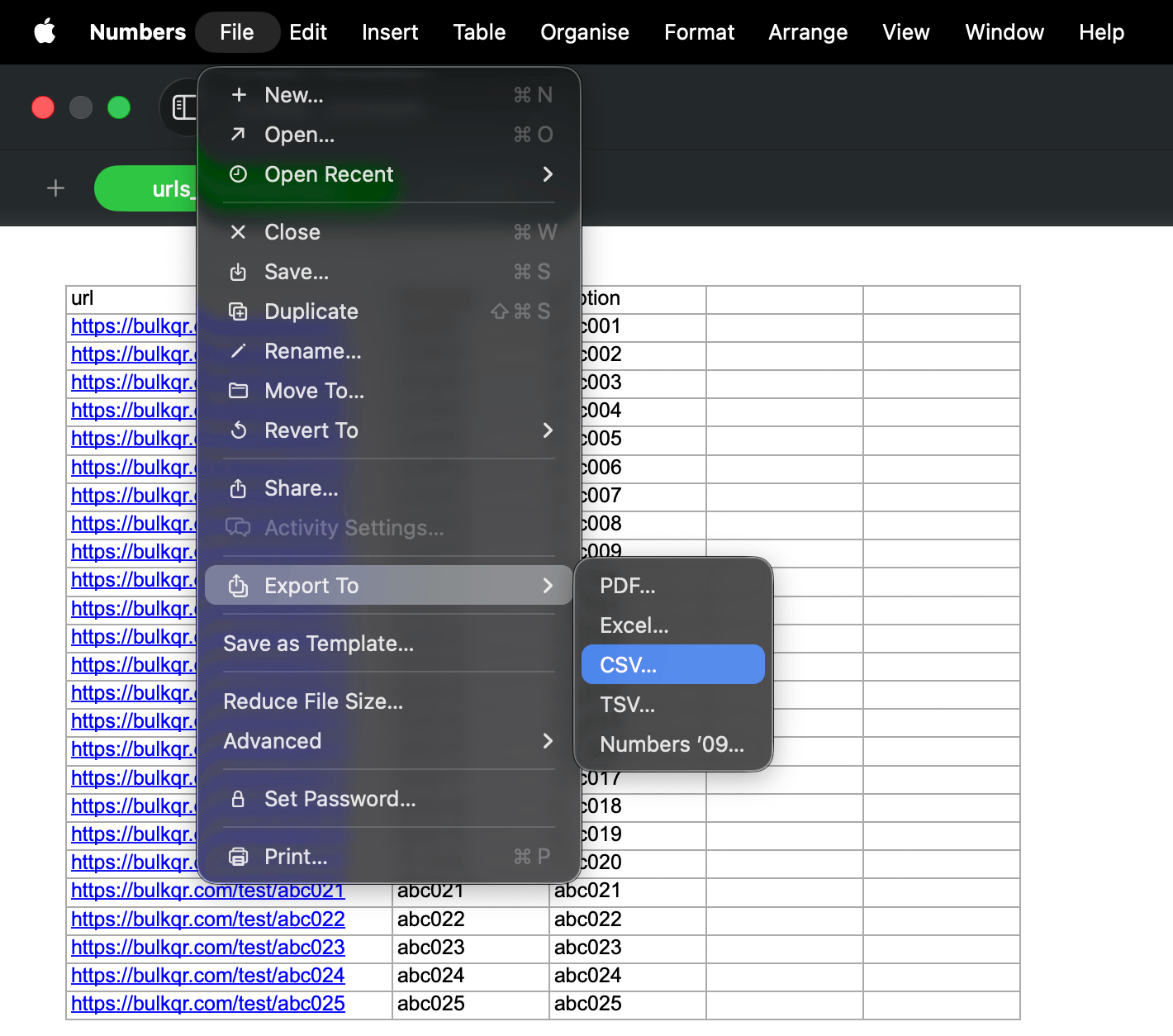
That encoding setting is the one to get right. Choose it and any accents, curly quotes or currency symbols in your captions survive the trip.
Numbers can also export to Excel format via File → Export To → Excel… if
you'd rather hand someone an .xlsx. BulkQR reads either.
Google Sheets
Sheets is the easiest of the three, because there's nothing to configure.
- Open your sheet.
- Choose File → Download → Comma Separated Values (.csv).
- The file lands in your Downloads folder.
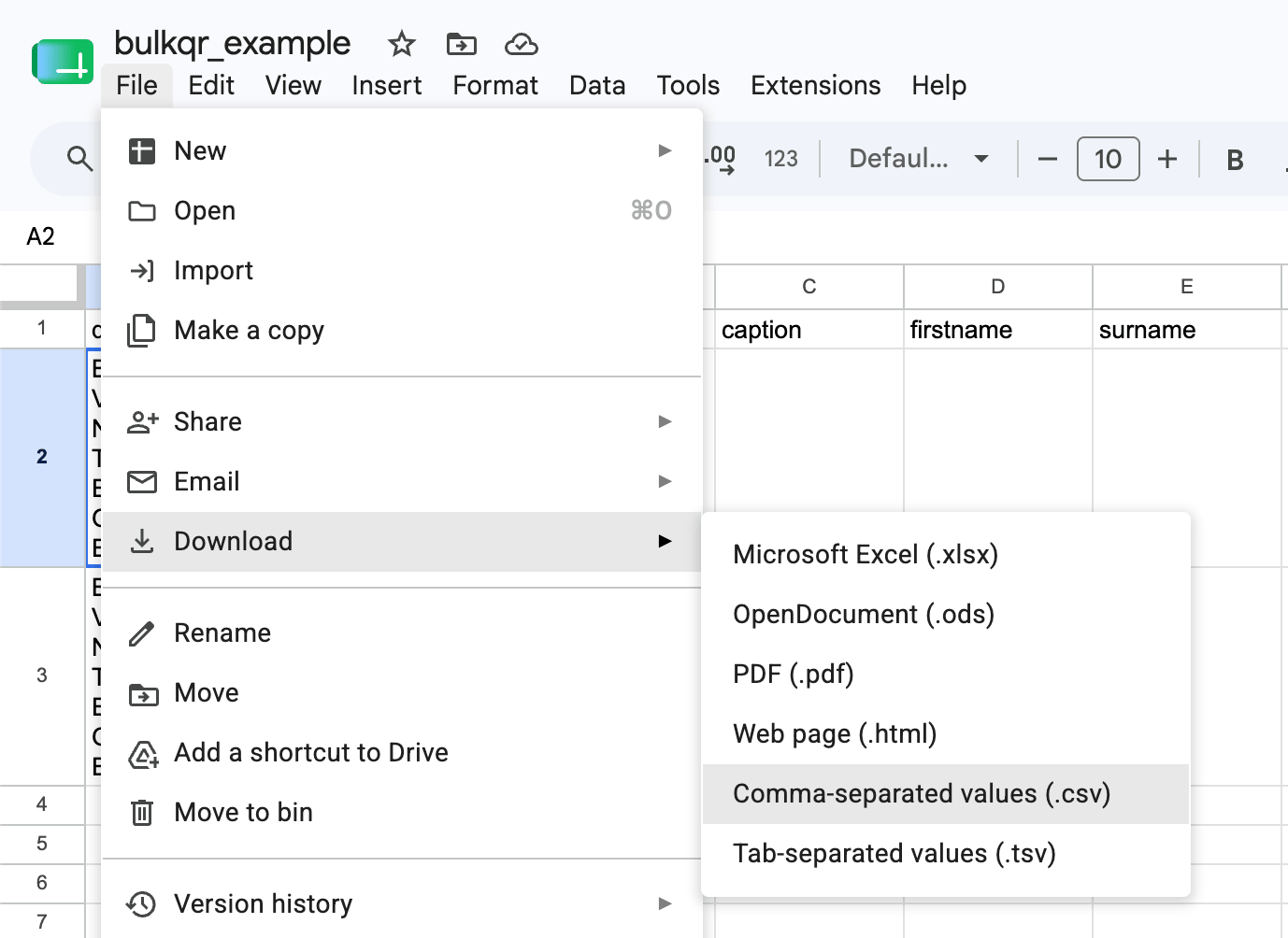
Google always writes UTF-8, so accented characters simply work.
Or skip the file entirely. Select the cells you want, copy them (Cmd-C or Ctrl-C), and paste straight into the Data box on BulkQR. Google puts tab-separated text on the clipboard and BulkQR recognises it. For a short list that's quicker than downloading anything.
Microsoft Excel
Excel offers two things called CSV, and they are not the same.
- Choose File → Save As.
- In the file-type dropdown, pick CSV UTF-8 (Comma delimited) (.csv).
- Save. Excel warns that only the current sheet is kept. That's fine.
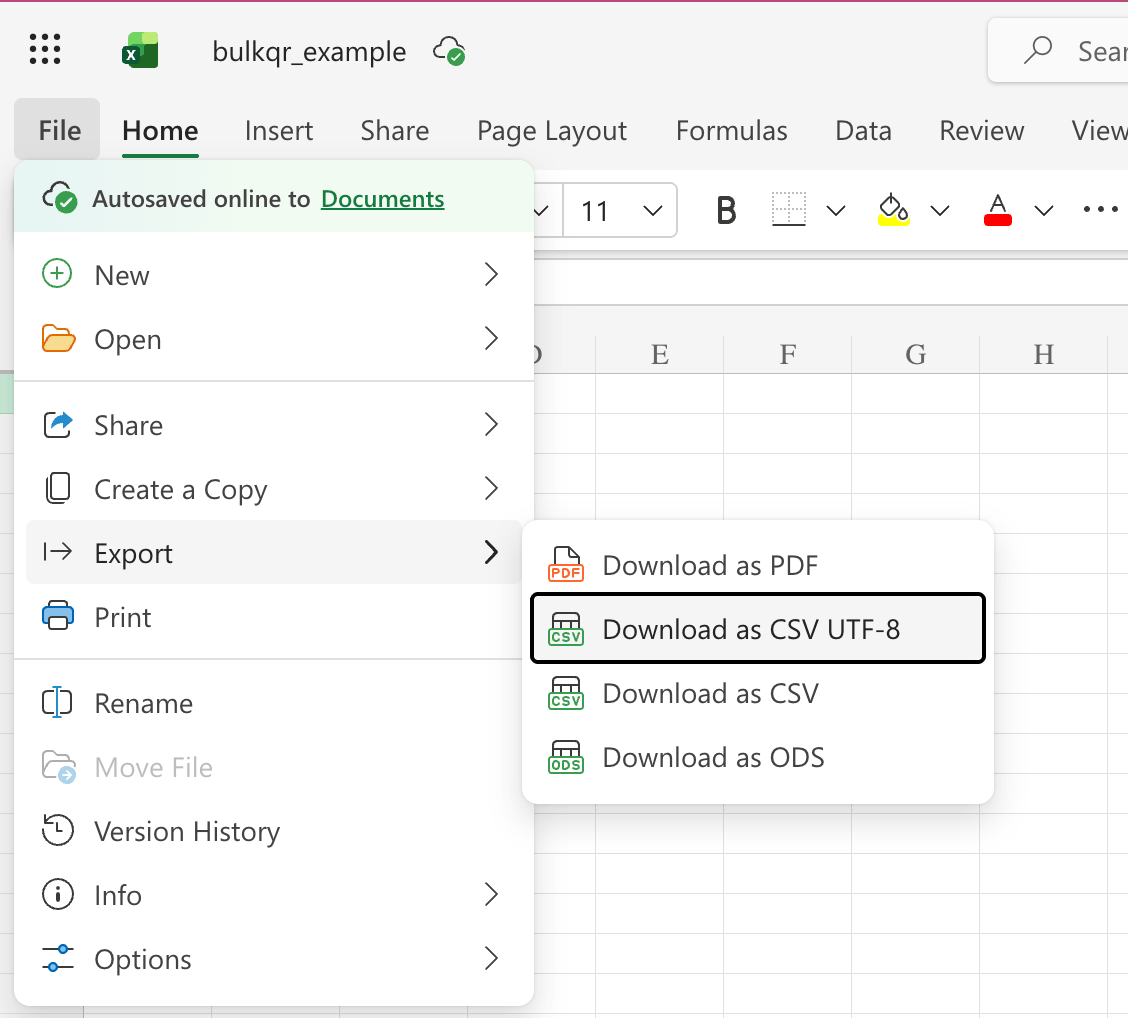
Do not pick the plain CSV (Comma delimited) entry near it on Windows. That one writes an older encoding, and accented letters, curly quotes and currency symbols come out as gibberish.
Or don't export at all. BulkQR reads .xlsx files directly, so you can
upload your Excel workbook as it stands. Two things to know if you do: it reads
the first sheet only, and the workbook has to be under 15 MB, because it's
opened inside your browser rather than sent to a server.
Import it into BulkQR
- Go to BulkQR, or the printable labels page if you want a sheet of labels to print.
- Click Import a file under the Data box and choose your file. You can also drag the file from your desktop and drop it anywhere on that box.
- Your rows appear in the box. BulkQR works out on its own whether the file uses commas, semicolons or tabs.
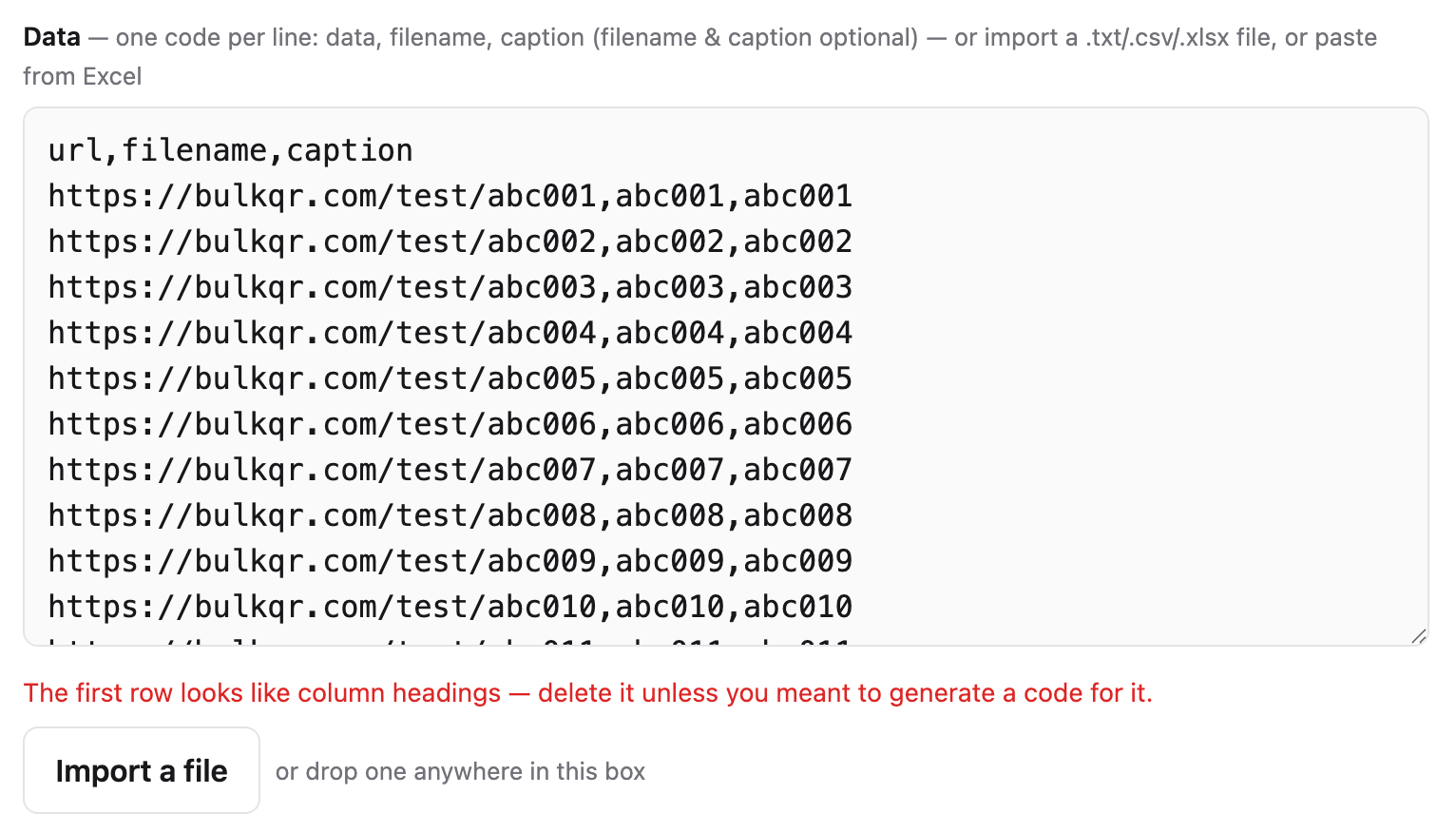
Delete the heading row
If row 1 of your file holds the words url, filename and caption (as ours
does), BulkQR spots it and says so:
The first row looks like column headings. Delete it unless you meant to generate a code for it.
The printable labels page shows the same notice, ending unless you meant a label for it instead.
Delete that first line in the Data box and the message goes away.
BulkQR deliberately doesn't remove it for you. Guessing wrong would quietly drop a real row from your batch, and there's no version of that which beats asking.
When it doesn't work
Accented letters look like gibberish. The file was saved in the wrong encoding. Export it again and choose the UTF-8 option.
"That spreadsheet is 22 MB, too large to open in the browser." Spreadsheets are opened inside your browser, and a large workbook takes up far more memory than its file size suggests. Export it as a CSV and use that instead. There's no size limit on a CSV, only the 1,000,000-code limit on a single batch.
Nothing came in, or the wrong rows did. BulkQR reads the first sheet of a workbook and ignores the rest. Move your data to the first tab, or export just that sheet as a CSV.
The leading zeros vanished from your product codes, or a long number turned
into something like 1.23457E+11. The spreadsheet decided your text was a
number. Format the column as Text before you type or paste into it, then
re-enter the values.
A code that should read 03-04 came out as a date. Same cause, same fix:
format the column as Text first.
Then what
Once the rows are in, you set the design once (size, colour, error correction) and it rides along on every code in the batch. Download the lot as a ZIP, or head to the printable labels page to lay them out on a label sheet.
- Choosing what each code should point at, with worked examples for inventory, events and products: bulk QR codes from a CSV
- Working with really long lists: generate lots of QR codes at once
- Making sure they actually scan: what makes a good QR code